This guide shows you how to get started integrating your Android application with the In‑app Calling SDK. Because this is a getting started guide, we only cover the basic steps to sign in to the In‑app Calling SDK and to make and receive audio calls.
This guide is meant to be used alongside our samples available in the SDK.
Code snippets shown in the guide are part of the sinch-rtc-sample-push sample available on our download page inside the SDK archive. Please follow along with the samples open in your IDE.
For more complex examples and documentation, check inside the SDK package file or look at our tutorials.
- Android Studio and Android SDK tools available at the Android Studio website.
- In‑app Calling SDK for Android.
- For convenience, two physical Android devices (however, one physical device and one emulator is enough for testing purposes).
Create a new Android Studio project using the "Empty Activity" template.
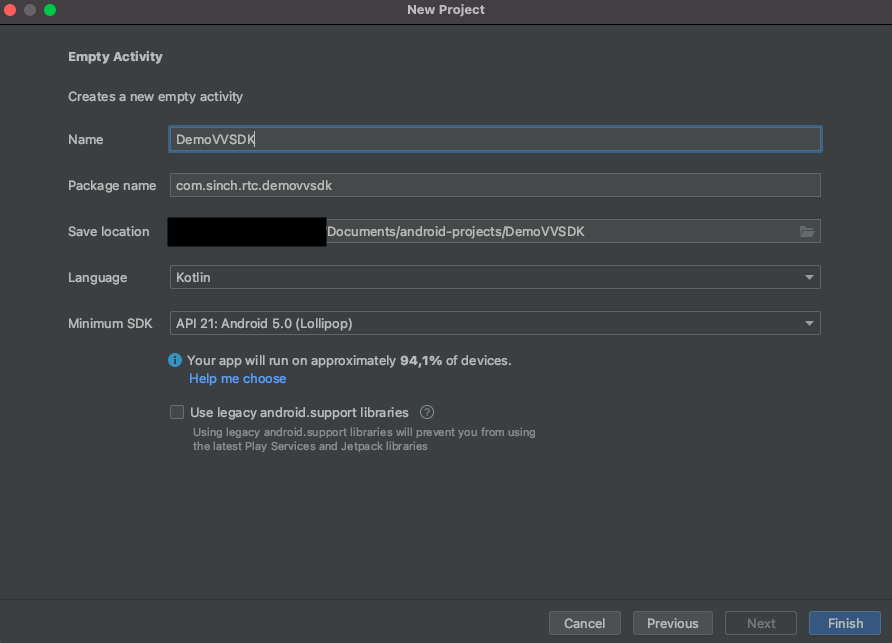
- You can use Kotlin as your development language in both Java and Kotlin versions of the SDK.
- The name of your application does not need to correspond to the one provided in the Sinch Dashboard.
In your web browser, go to the Sinch SDKs download page.
Find the Android SDK for Java, download the ZIP file, and extract it.
Along with the library itself, the package also contains documentation and sample applications. For the purpose of this tutorial, only the AAR file is needed. Locate it inside the
libsfolder and copy it.Paste it into the
<your-android-application-name>/app/libsdirectory.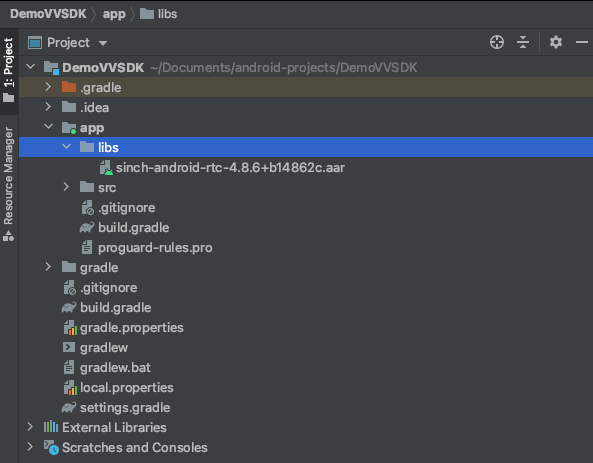
Edit your app module
build.gradlefile located underapp/build.gradleto include the following:app/build.gradle
repositories {
    flatDir {
        dirs 'libs'
        }
    }

dependencies {
    implementation(name:'sinch-android-rtc', version:'+', ext:'aar')
    // other dependencies
    }
You should see a message that Gradle files have changed. Click Sync Now and wait for Android Studio to adopt your changes.
Alternatively, the SDK is available on Maven Central. See Minimum requirements for more information.
The SinchClient object is the main SDK entry point. Once created, it provides various SDK features such as video, audio, or PSTN calls. We recommend initiating SinchClient once and retaining its instance for the entire lifetime of the running application. Instead of placing it inside Activity or Fragment classes, put it inside a Service component.
- Create a new Kotlin class that extends the Service component (don't forget to define the service in your
AndroidManifest.xmlfile). - Add a
SinchClientinstance as a member variable. - Create a function that builds the client.
The result of these steps is demonstrated below:
class SinchService : Service() {

    companion object {
        private const val APP_KEY = "enter-application-key"
        private const val APP_SECRET = "enter-application-secret"
        private const val ENVIRONMENT = "ocra.api.sinch.com"
    }

    private var sinchClient: SinchClient? = null

    private fun createClient(username: String) {
        sinchClient = SinchClient.builder().context(applicationContext)
            .userId(username)
            .applicationKey(APP_KEY)
            .environmentHost(ENVIRONMENT)
            .pushConfiguration(
                PushConfiguration.fcmPushConfigurationBuilder()
                    .senderID(APP_FCM_SENDER_ID)
                    .registrationToken(getFcmRegistrationToken(this).orEmpty()).build()
            )
            .pushNotificationDisplayName("User $username")
            .build()
        sinchClient?.addSinchClientListener(MySinchClientListener())
        sinchClient?.callController?.addCallControllerListener(SinchCallControllerListener())
    }
    // ...
}
To make this example work for you, you need to update some values:
| Parameter | Your value |
|---|---|
APP_KEY | You can find your key on your Build dashboard. |
APP_SECRET | You can find your secret on your Build dashboard. |
pushConfiguration | FCM or HMS push configuration needed by the SDK to send push messages notifying about incoming calls. See the Push notifications section for more information. |
There are a few other elements to notice:
- The
environmentHostparameter is the endpoint of the REST API the SDK targets. - The
userIdparameter is the user identifier to register within your application (the specific value will be provided after clicking the Login button in the Android application).
When starting the Sinch client, the SinchClientListener.onCredentialsRequired method executes. Inside this callback you must provide a JWT token signed with your application secret. In a production application the token should be generated on your backend infrastructure. Most importantly, do not put your app secret value into your Android application source code. More information can be found in the Authentication & Authorization and Authorizing the client sections.
Just for this step‑by‑step guide, we will mimic a backend authentication server behavior with a helper JWT class that creates the token locally based on userId and your application credentials, and then passes it back to the Sinch SDK:
override fun onCredentialsRequired(clientRegistration: ClientRegistration) {
    clientRegistration.register(create(APP_KEY, APP_SECRET, settings.username))
}
An implementation of the JWT class can be found in the samples provided with the SDK package.
For example: samples/sinch-rtc-sample-push/src/com/sinch/android/rtc/sample/push/JWT.kt
To communicate between your application view layer (activities and fragments) and the Sinch client that lives inside the Service instance, implement a bound service pattern. Information about bound services can be found in the official Android documentation: Bound services.
Inside
SinchService, create an inner class that extendsBinder.Add basic functionality that allows the application to start the Sinch client for a given username and provide a way to be notified about the initialization result:
private var listener: StartFailedListener? = null

interface StartFailedListener {
    fun onFailed(error: SinchError)
    fun onStarted()
}

inner class SinchServiceInterface : Binder() {

    fun startClient() {
        // The username is fetched from settings.
        start()
    }

    fun setStartListener(listener: StartFailedListener?) {
        this@SinchService.listener = listener
    }
}
Override the
onBindmethod to returnSinchServiceInterface:private val sinchServiceInterface: SinchServiceInterface = SinchServiceInterface() override fun onBind(intent: Intent): IBinder { // ... return sinchServiceInterface }
When the user starts the application, they typically enter a username that will be passed as userId and used to create a Sinch client. The username they choose will be used as a callee identifier for making the audio call.
Rename the
MainActivityandactivity_main.xmlfiles in Android Studio (created when you set up the project) toLoginActivityandlogin.xml. Right‑click the filename and chooseRefactor -> Rename.Create a simple layout containing an
EditText(for entering the username) and a login button.<LinearLayout android:id="@+id/userNameInput" android:layout_width="fill_parent" android:layout_height="wrap_content" android:layout_centerVertical="true" android:orientation="vertical" android:paddingLeft="@dimen/margin_big" android:paddingRight="@dimen/margin_big"> <com.google.android.material.textfield.TextInputLayout style="@style/Widget.MaterialComponents.TextInputLayout.OutlinedBox.Dense" android:layout_width="match_parent" android:layout_height="wrap_content" android:layout_marginBottom="@dimen/input_layout_bottom" android:layout_marginTop="@dimen/margin_big" android:hint="@string/enter_your_id" app:startIconDrawable="@drawable/ic_baseline_person_24_black" app:startIconTint="@color/colorPrimaryDark"> <com.google.android.material.textfield.TextInputEditText android:id="@+id/loginName" android:inputType="text" android:imeOptions="actionDone" android:layout_width="match_parent" android:layout_height="wrap_content" /> </com.google.android.material.textfield.TextInputLayout> </LinearLayout> <com.google.android.material.button.MaterialButton android:id="@+id/loginButton" android:layout_width="match_parent" android:layout_height="wrap_content" android:layout_alignParentBottom="true" android:layout_centerHorizontal="true" android:layout_gravity="center_horizontal" android:layout_marginStart="@dimen/margin_average" android:layout_marginEnd="@dimen/margin_average" android:layout_marginBottom="@dimen/margin_average" android:padding="@dimen/margin_base_plus" android:text="@string/login" android:textColor="@color/white" app:backgroundTint="@color/sinch_green" />Inside the
LoginActivityfile, first bind to the Sinch client service by calling:private fun bindService() { val serviceIntent = Intent(this, SinchService::class.java) applicationContext.bindService(serviceIntent, this, BIND_AUTO_CREATE) }Note that
LoginActivityis passed as the second argument, meaning it must implement the ServiceConnection interface.Inside
onServiceConnectedinBaseActivity, assign the provided binder to a local variable for later communication with the service, and assignLoginActivityas a listener to get notifications about success or failure when starting the Sinch client.BaseActivityprotected var sinchServiceInterface: SinchService.SinchServiceInterface? = null private set override fun onServiceConnected(componentName: ComponentName, iBinder: IBinder) { if (SinchService::class.java.name == componentName.className) { sinchServiceInterface = iBinder as SinchService.SinchServiceInterface onServiceConnected() } } protected open fun onServiceConnected() { // for subclasses }LoginActivityoverride fun onServiceConnected() { if (sinchServiceInterface?.isStarted == true) { openPlaceCallActivity() } else { sinchServiceInterface?.setStartListener(this) } }Finally, assign the login button a click listener that initiates and starts the Sinch client:
override fun onCreate(savedInstanceState: Bundle?) {
    super.onCreate(savedInstanceState)
    // ...
    loginButton.apply {
        setOnClickListener { loginClicked() }
    }
}

private fun loginClicked() {
    val username = loginNameEditText.text.toString()
    sinchServiceInterface?.username = username
    startClientAndOpenPlaceCallActivity()
}
Return to the
SinchServiceimplementation. InsideonClientStartedandonClientFailedcallbacks ofSinchClientListener, pass the result to thesinchClientInitializationListener.override fun onClientFailed(client: SinchClient, error: SinchError) { listener?.onFailed(error) // ... } override fun onClientStarted(client: SinchClient) { listener?.onStarted() }Before launching the application, declare two permissions inside your
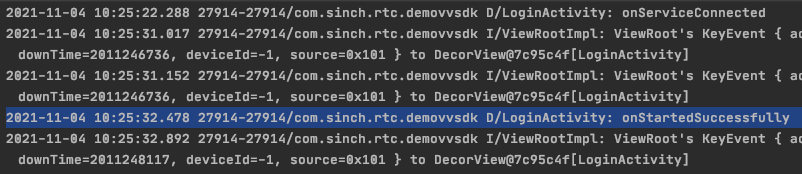
AndroidManifest.xmlfile that are required to start theSinchClient:<!-- app/src/main/AndroidManifest.xml --> <uses-permission android:name="android.permission.INTERNET"/> <uses-permission android:name="android.permission.ACCESS_NETWORK_STATE"/>Run the application, enter a username of your choice, and verify your Logcat output. You should see that the client started successfully.
Now that your application is created, you can configure it to make a call.